

Accurate product attributes are critical for Amazon listing success. They directly influence search visibility, shopper trust, and conversion rates. Missing or incorrect attributes can lead to listing suppression, decreased visibility, and customer confusion. Here’s what you need to know:
- Why It Matters: Attributes power Amazon’s A10 algorithm, search filters, and tools like its AI shopping assistant, Rufus. Rufus-driven sessions during Black Friday 2025 accounted for 40% of traffic with a 60% higher likelihood of purchase.
- Common Issues: Missing required fields, incorrect AI-generated data, and inconsistencies across product variations can harm performance. Amazon frequently updates attribute requirements, so staying current is essential.
- How to Fix: Use tools like the Listing Quality Dashboard and Fix Your Products to identify and resolve issues. Regular audits and accurate data updates ensure listings remain visible and competitive.
- Key Actions: Fill required and optional fields, verify accuracy against product specs, and maintain consistency across variations. Bulk uploads and OCR tools can streamline updates for large inventories.
How to Optimize Amazon Listings for AI & Humans in 2025: COSMO & Rufus Breakdown from Amazon Summit
sbb-itb-e2944f4
What Are Amazon Product Attributes
Amazon Product Attributes: Required vs Optional Fields Impact Guide
Product attributes are the technical specifics that define your product – things like brand, size, color, material, weight, and model number. Unlike product titles or descriptions, these attributes are structured data points Amazon uses to organize its vast catalog. They make it possible for shoppers to filter results and find products that meet their exact criteria.
Glenn_Amazon, a member of Amazon’s Community Management team, explains it well:
"Attributes are the essential details you add to your listing including things like Brand, Manufacturer, Color, or Size. Understanding Attributes and how they work can make your listings more attractive to prospective Buyers".
This highlights the importance of attributes in crafting effective, customer-friendly listings.
Product Attribute Basics
Attributes serve as the technical backbone of your product listing and can be grouped into three main types:
- Technical attributes: Details like battery life or thread count.
- Logistical attributes: Information on packaging, weight, and dimensions.
- Marketing attributes: Elements such as brand name and product benefits.
For example, in the footwear category, attributes like Target Gender, Age Range, Footwear Size System, and Shoe Size Width are critical. These details ensure that a customer searching for "men’s wide running shoes size 11" can find exactly what they need.
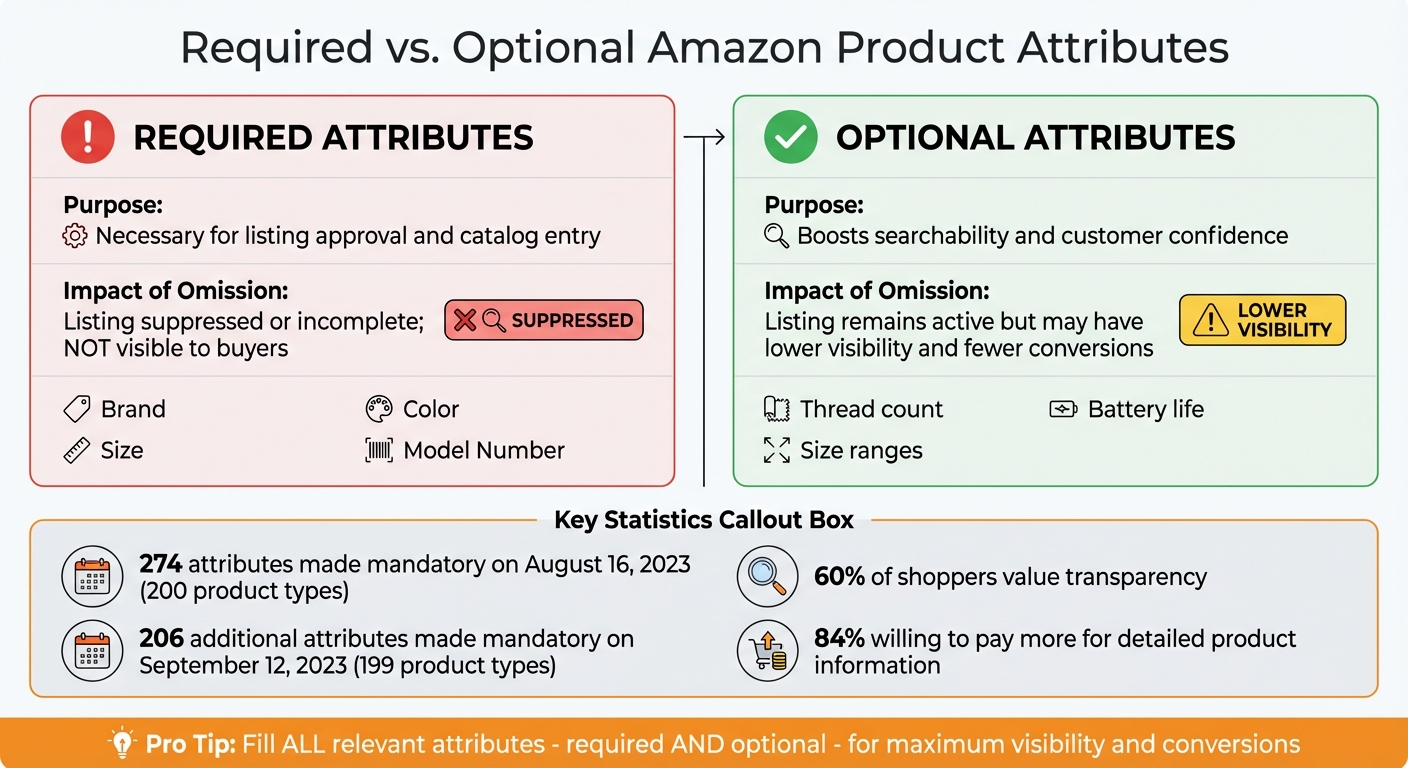
Providing detailed and accurate attributes builds trust. Statistics show that 60% of shoppers value transparency, and 84% are willing to pay more for it. So, adding thorough product details doesn’t just help Amazon’s algorithm – it also reassures buyers and boosts confidence in your brand.
Required vs. Optional Attributes
Understanding the difference between required and optional attributes is key. Amazon splits attributes into two categories:
- Required attributes: These are mandatory for your listing to be approved and visible. Missing even one required field can result in your listing being suppressed or marked incomplete, making it invisible to shoppers. What’s required varies by category; for instance, footwear has different requirements than electronics or home goods.
- Optional attributes: While not mandatory, these can significantly improve your product’s visibility and appeal. They populate Amazon’s search filters, helping your product show up in specific filtered searches.
Amazon has been raising the bar for required attributes. On August 16, 2023, 274 attributes were made mandatory across 200 product types. Then, on September 12, 2023, another 206 attributes became mandatory for 199 additional product types. This means that fields that were optional last year might now be required, especially for new listings or reactivating inactive ones.
Skipping optional attributes, while not as critical as missing required ones, can still hurt your listing. These fields enhance searchability and build buyer trust. For instance, the "Apparel Size to Value" attribute allows you to specify size ranges like "Small to Medium", which gives shoppers more options and flexibility.
| Attribute Type | Purpose | Impact of Omission |
|---|---|---|
| Required | Necessary for listing approval and catalog entry | Listing suppressed or incomplete; not visible to buyers |
| Optional | Boosts searchability and customer confidence | Listing remains active but may have lower visibility and fewer conversions |
To ensure your listing performs at its best, fill out all relevant attributes. These details help Amazon match your product with the right searches and give shoppers the information they need to make confident purchasing decisions. By completing every applicable field, you’re setting your listing up for success and aligning with Amazon’s best practices for optimization.
How to Audit Your Product Attributes
Regularly auditing your product attributes is essential for maintaining visibility and driving sales on Amazon. Amazon provides built-in tools to help you identify issues like missing data, conflicts, or risks of suppression. Start by prioritizing missing attributes and suppression risks to ensure your listings stay active.
Using Amazon’s Audit Tools
The Listing Quality Dashboard is the go-to tool for spotting attribute issues. To access it, navigate to Inventory > Improve Listing Quality in Seller Central. This dashboard highlights missing category-specific attributes and ranks them by priority. It also includes a potential sales lift metric, which estimates how much revenue you could gain by addressing these gaps, based on data from other sellers in your category.
Amazon advises checking this dashboard weekly to keep up with new requirements and avoid listing suppression. The "Review at-risk listings" tab is particularly important – it flags products that need updates by a specific deadline to prevent them from disappearing from search results.
For listings that are already suppressed or inactive, use the Fix Your Products tool. You can find it under Inventory > Manage All Inventory > Search Suppressed and Inactive Listings. This tool identifies attribute conflicts where your data doesn’t match Amazon’s catalog. To resolve these issues, you can select "Accept Amazon’s Value" for incomplete listings. Common problems include GTIN mismatches and incorrect brand names.
| Tool Name | Location in Seller Central | Primary Audit Function |
|---|---|---|
| Listing Quality Dashboard | Inventory > Improve Listing Quality | Identifies missing attributes and at-risk listings |
| Fix Your Products | Inventory > Manage All Inventory > Search Suppressed and Inactive Listings | Resolves incomplete listings and matching conflicts |
| Brand Analytics | Brand Registry > Brand Analytics | Audits search term performance and keyword relevance |
Once you’ve identified the issues using these tools, the next step is to ensure your attribute data is accurate and aligns with your product details.
Checking Attributes for Accuracy
After flagging discrepancies, it’s crucial to manually verify your product attributes. Begin by comparing the data in your listings with the actual product specifications and packaging. For categories like apparel and footwear, pay close attention to attributes such as Size System, Size Class, and Body Type to ensure they meet Amazon’s marketplace-specific standards. For example, avoid errors like labeling a size 12 item under an infant category.
Double-check key details such as UPCs, model numbers, dimensions, and weight to ensure they match the information in Seller Central. Albert Podshivaylov from Goat Consulting highlights the importance of completing these attributes:
"Filling out all of the missing attributes in your listing quality dashboard can help your product become discoverable and applicable to certain filters, making sure that if a customer filters by size or color, you are showing up".
Use the Listing Status Filter in Manage All Inventory to separate active listings from inactive ones, making it easier to identify those needing immediate attention. Be especially vigilant with safety and compliance-related attributes, such as pesticide markings or hazmat classifications. Missing or incorrect data in these areas can lead to instant suppression.
Keep in mind that changes typically take about 1.5 hours to reflect on your live product page, so revisit your listings after making updates to confirm they’ve been applied correctly.
How to Edit and Manage Attributes in Seller Central

Making sure your product attributes are accurate is essential for keeping your listings visible and performing well in search results. Once you’ve pinpointed which attributes need adjustments, you can update them either one at a time or in bulk. For sellers managing large inventories, bulk uploads are the quickest way to ensure consistency and accuracy across all listings. Amazon typically processes these updates within 24 to 48 hours after a successful upload.
Editing Attributes with Bulk Uploads
Using inventory file templates allows you to update multiple products at once via CSV or text-based spreadsheets. To access these, go to Inventory > Add Products via Upload > Download an Inventory File. Use the Product Classifier tool to match your products to the correct category since each category has its own required attributes.
The downloaded file includes seven sheets, but your main focus will be the "Template" tab, where you’ll input your product data. To avoid errors, check the "Valid Values" tab for acceptable attribute terms like size or color. The "Data Definitions" tab provides details about what kind of information should go into each column.
When uploading, save your file as either a Tab-delimited text (.txt) or Comma-separated values (.csv) file – Amazon doesn’t accept the original .xlsm format. For updates to specific attributes (e.g., dimensions), use PartialUpdate in the update type column. This ensures only the fields you’ve specified are changed, leaving other data intact. On the other hand, if you’re rebuilding a listing or addressing severe issues, use Full Update, which overwrites all fields for the SKU.
After uploading, Amazon will generate a processing report. This report highlights which updates were successful and provides error codes for any failed entries. If you’re managing thousands of SKUs, consider breaking uploads into smaller batches to simplify troubleshooting. Once your upload is complete, focus on resolving any errors flagged in the report.
Fixing Common Attribute Edit Problems
Sometimes, certain attributes appear greyed out in Seller Central, making manual edits impossible. In these cases, you’ll need to use a category-specific inventory file to make changes. If updates don’t reflect within 24 hours, Amazon may have prioritized data from another seller based on factors like sales volume, return rates, and customer feedback. Manny_Amazon, a Community Manager, explains:
"When multiple sellers sell the same product through a single detail page, Amazon automatically combines the best product data from various seller submissions to ensure customers get the best experience".
For categories like Clothing, Beauty, and Sporting Goods, product titles and descriptions often come from the parent ASIN rather than the child ASIN. This means that editing a child listing won’t affect what customers see unless you update the parent ASIN. If locked attributes prevent you from making changes, you can submit a manufacturer’s URL or high-resolution photos that clearly display the product identifier and the attribute you want to update.
If your file upload fails, take note of the Batch ID and Error Code from the processing report. Submit these details along with your original file to Selling Partner Support for assistance.
For a deeper understanding of Amazon’s internal data, request access to the Category Listing Report (CLR) through the Help section in Seller Central. This report provides a detailed view of what Amazon’s systems enforce. As Online Seller Solutions explains:
"The CLR shows what Amazon’s internal systems see, not what sellers assume is live. It reveals real parent-child relationships, hidden compliance fields, variation attributes, and inconsistencies".
Keeping Attributes Consistent Across Product Variants
Once you’ve ensured your product data is accurate, the next step is to maintain consistency across product variants. This is key for improving search visibility and avoiding customer confusion. Attributes like size, color, and style need to be uniform across all variants to create a seamless shopping experience. For example, Amazon restricts variation families to a maximum of 2,000 Child ASINs. If you exceed this limit, the product detail page won’t display correctly.
Core attributes such as Brand Name, Product Type, and Item Type Keywords must remain identical across all Child ASINs. The only differences should be specific details like size, color, or flavor. Keeping these attributes consistent ensures that all variants work together to form a cohesive, optimized listing. This consistency not only enhances the user experience but also improves the overall performance of your product listings. Now, let’s dive into how to manage these variations with Parent and Child ASINs.
Managing Attributes with Parent and Child ASINs
The Parent ASIN acts as a non-purchasable grouping tool, while Child ASINs represent the actual products customers can buy. The Parent ASIN holds the core data for the brand, while each Child ASIN showcases a unique variant, such as "Blue/Small" or "Red/Large." Leah McHugh, a Listing Compliance Investigator at ecommerceChris, explains:
"Child products can only vary by the theme, and available themes differ by category. If your products don’t fit into one of the available themes, Amazon doesn’t want them in a variation family."
When working with inventory flat files, it’s crucial to ensure that the "Parent SKU" column for every Child ASIN matches the Parent ASIN’s SKU exactly. This alignment helps maintain consistency across your listings. To stay organized, consider adopting a clear naming convention, like appending "-parent" to the Parent SKU.
In categories such as Clothing, Beauty, and Sporting Goods, Amazon often pulls titles and bullet points from the Parent ASIN rather than the individual Child ASINs. This makes it essential to keep the Parent ASIN’s information up-to-date. Before uploading your data, check the "Valid Values" tab in your category’s inventory template to confirm that your variation theme is supported. Using an unsupported theme could result in your listing being suppressed.
How to Verify Attributes Before Publishing
Before hitting publish, it’s crucial to double-check your attributes against the live product data. This step ensures that your listings accurately reflect the actual product, helping you avoid customer complaints, returns, or even listing suppressions. A great way to do this is by downloading the Category Listing Report (CLR) from Seller Central. This report gives you a behind-the-scenes look at the live backend data Amazon has for your listings. As Online Seller Solutions points out:
"The CLR [Category Listing Report] reflects the live catalog state, including which attributes Amazon accepted, ignored, or overwrote… it is almost always the most accurate source of truth."
Start by comparing the CLR data with your product’s physical packaging. Double-check details like weights, dimensions, and materials to ensure they match perfectly. For units of measure, use full names – like "pounds" instead of "lb" – to comply with Amazon’s current standards. If you’re selling items like apparel or footwear, verify fields such as "Target Gender", "Age Range Description", and "Size System" to ensure they align with your product’s specifications. For listings with variations, consistency is key. For example, don’t label one variation "Blue" and another "Navy Blue". Once everything checks out, compare these verified backend details with the product’s actual packaging to confirm consistency.
Comparing Attributes with Product Information
A hands-on approach is essential when verifying your listing data. Use the Amazon Seller Mobile App to scan UPCs and barcodes for quick checks. Pay close attention to your product images – they must be accurate and unaltered. The product should also fill at least 85% of the image frame. Fahim Sheikh, CEO of Trellis, stresses:
"Images must not be digitally enhanced or altered in any way (other than resizing) and must accurately reflect the product and its condition."
If you’re part of the Amazon Brand Registry, you’ll have more control over attribute updates since only authorized representatives can make changes. For small fixes, use the "PartialUpdate" command in bulk uploads to modify specific fields without disrupting other accurate data. To fine-tune your listings even further, consider using technology to extract exact details directly from your product labels.
Using OCR Tools to Extract Attribute Data
OCR (Optical Character Recognition) tools can be a game-changer for verifying product details. These tools scan text from product labels or packaging photos and convert it into digital text. This is especially helpful for capturing intricate details like ingredients, volume measurements, batch numbers, or hazard warnings. As Alphamoon explains:
"Relying on an OCR means that the tool works consistently and doesn’t get tired despite the large volumes of text it’s given to capture."
For products with curved surfaces, such as cans or bottles, advanced OCR tools can stitch together multiple images to flatten out the text, making it easier to read. Amazon also offers generative AI features that can analyze product images and suggest titles, descriptions, and attributes. This can act as a modern alternative to traditional OCR. Instead of manually typing everything, let OCR handle the heavy lifting, and then have a team member review the extracted data. This combination of automation and human oversight helps reduce errors while maintaining high accuracy.
Conclusion
By 2026, accurate product attributes are the foundation of effective Amazon listings, fueling both the A10 algorithm and Rufus, Amazon’s AI shopping assistant. These attributes do more than just improve search rankings – they build trust and turn casual browsers into loyal buyers. Taylor Everett, Director Creative at Buy Box Experts, captures this perfectly:
"Making the right sale to the right consumer outweighs sales volume: informative copy and clear listing images will help you convert the type of customer who will love and appreciate your products."
The numbers back this up: Rufus-assisted sessions have been shown to boost conversion rates by 25% to 40%. Additionally, optimizing listings with detailed and accurate attributes reduces returns caused by unmet expectations.
Consistency is critical when managing optimized listings. Your listing data should align seamlessly with your images, and product variants need standardized naming conventions. Tools like the Listing Quality Dashboard can help identify and address issues before they impact performance. Regularly review backend keywords to stay within the 500-byte limit, and make it a priority to fill in recommended attributes for your top-performing products. These small but essential steps set the groundwork for growth.
Think of your product attributes as the engine driving your listing’s success. When done right, they don’t just improve click-through rates and conversions – they enhance customer satisfaction. In an increasingly AI-driven marketplace, accurate attributes are more than a necessity; they’re a pathway to growth. By focusing on precision and consistency, you position your brand for long-term success in Amazon’s competitive landscape.
FAQs
Which attributes impact Amazon search the most?
Several elements directly impact how products appear in Amazon’s search results. These include product titles, bullet points, descriptions, images, and the relevant keywords seamlessly integrated into these components. Beyond these, customer engagement metrics, such as click-through rates and reviews, along with seller authority, significantly affect a product’s visibility and ranking. Each of these factors works together to shape search performance on the platform.
How do I fix attributes that are locked or greyed out?
If you notice that certain attributes on your Amazon listing are locked or grayed out, there’s a workaround to fix this. Start by deleting the listing entirely. Wait for 24 hours, then re-create it. To do this, use Amazon’s feed templates to delete the listing first. Afterward, upload a new inventory file with the updated and correct attributes.
This process essentially clears out the old data tied to the listing, allowing you to make changes. Keep in mind that locked attributes are often connected to Brand Registry, which is why they can’t be edited directly.
How can I stop Amazon from overwriting my attribute edits?
To stop Amazon from overwriting your attribute edits, make updates directly through the Manage Inventory page or by uploading an inventory file. If the problem continues, try deleting the SKU and re-uploading it with the correct attributes. Be sure to adhere to Amazon’s guidelines and include accurate supporting documentation to help ensure your changes stick.