

If your Amazon late shipment rate goes over 4%, you need to fix two things fast: your shipping settings and your shipment confirmation process. Late shipment rate is based on when you confirm shipment, not when the package gets delivered. So even if an order left on time, Amazon can still count it as late if you confirmed it after the ship-by date.
Here’s the short version:
- I check Account Health in Seller Central and review both the 10-day and 30-day late shipment rate views.
- I download the late shipment report and look at the ship-by date, confirmation time, carrier, and SKU patterns.
- I sort each late order into one of four cause groups: settings, inventory, warehouse work, or confirmation delays.
- I fix the setting or process behind the issue, such as handling time, cut-off time, weekend setup, or same-day confirmation ownership.
- I keep a daily routine so orders are picked, packed, and confirmed before carrier pickup.
A few facts matter here: Amazon tracks late shipment rate in rolling 10-day and 30-day windows, and one bad stretch can affect the metric for up to 30 days. Amazon also notes that tracking and confirmation updates may take up to 72 hours to show in reports.
If I had to boil the whole process down, it would be this: find the late orders, spot the pattern, fix the root cause, and check the metric every day.
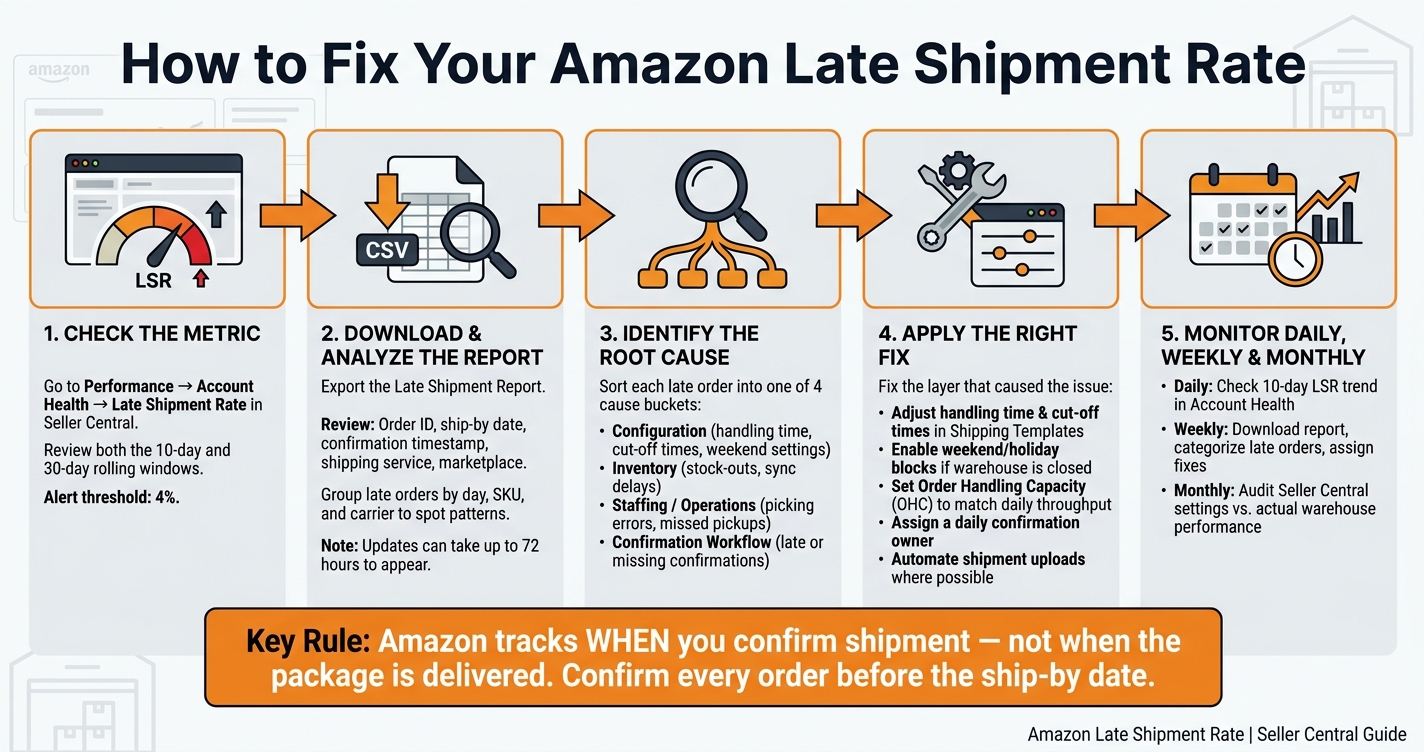
How to Fix Amazon Late Shipment Rate: 5-Step Process
How to find and review late shipment rate in Seller Central

Open the metric in Account Health and read the 10-day and 30-day views
In Seller Central, go to Performance → Account Health → Shipping Performance → Late Shipment Rate. There, you’ll see your current Late Shipment Rate in both the 10-day and 30-day rolling windows, plus alerts if the metric is getting close to or has passed Amazon’s 4% threshold.
The 10-day view helps you spot new problems fast. The 30-day view gives you a better sense of whether your changes are starting to work.
Once you’ve checked the metric, the next step is to pull the order-level report.
Download the report and review the orders that triggered the metric
On the Late Shipment Rate page, scroll down and click Download Report to export the orders Amazon counted as late.
Pay close attention to these fields:
- Order ID
- ship-by date
- confirmation timestamp
- shipping service
- marketplace
Then compare the ship-by date with the actual confirmation time. That shows you exactly how late each order was confirmed and helps you see whether the issue is tied to certain days, carriers, or SKUs.
Patterns matter here. If several late orders show up on the same day, with the same carrier, or around the same SKU set, that usually points to the source of the problem.
Amazon notes that tracking and confirmation updates can take up to 72 hours to appear in the report. So if something looks off, give it a little time before you make the call.
A simple way to review the data is to group the late orders by day, SKU, and carrier. That makes the root cause much easier to spot.
sbb-itb-e2944f4
Understanding the Late Shipment Rate
Find the root causes behind late shipment rate
Once you’ve compared the ship-by date with the confirmation timestamp, the next step is simple: sort each late order by why it happened.
In most cases, late shipments come from two broad areas:
- Configuration problems in Seller Central
- Operational problems in the warehouse and fulfillment flow
That split matters. If the issue lives in your settings, no amount of rushing on the warehouse floor will fix it. And if the settings are fine, then the delay is probably happening in day-to-day execution.
Common process failures that create late confirmations
A common problem is orders that were shipped on time but confirmed too late. This usually happens when shipment confirmations are entered late, handled by hand, or delayed because Amazon and your internal system aren’t syncing fast enough.
Another major cause is handling time that doesn’t match reality. Say your shipping template promises one day of handling, but your team needs two days to pick, pack, and label orders. At that point, late shipments aren’t a surprise – they’re baked into the process.
A similar issue shows up with cut-off times that are too late. If customers can place orders too close to the carrier pickup window, your team may not have enough time to get those orders out the door. The fix is usually pretty direct: set cut-off times before pickup.
Weekend and holiday settings can trip teams up too. If your shipping template treats weekends as working days but the warehouse is closed, orders placed on Saturday or Sunday may get a ship-by date your team can’t hit.
Then there’s inventory. Inventory shortages can slow everything down when stock appears available online but isn’t actually on the shelf. And on the warehouse side, picking errors, labeling mistakes, and missed carrier pickups can all stretch the fulfillment timeline and push confirmation past the deadline.
Map each cause to the right fix
Match each late order to the pattern that fits best, then apply the related fix.
| Cause | Report pattern | Fix |
|---|---|---|
| Unrealistic handling time | Late shipments clustered near order cutoff despite smooth warehouse processing | Adjust handling time in Shipping Templates to reflect actual processing time |
| Cut-off times that are too late | Late confirmations for orders placed close to carrier pickup | Set cut-off times before the carrier pickup window |
| Weekend misconfiguration | Late shipments consistently on weekend orders | Set weekend days as non-working in Shipping Settings if the warehouse does not operate on weekends |
| Shipped but not confirmed | Internal logs show on-time handoff; Seller Central confirmation timestamp falls after ship-by | Assign clear ownership for confirmations and use a same-day confirmation routine, or automate shipment uploads with shipping software |
| Inventory shortages | Orders canceled or delayed; low or zero inventory on key SKUs at time of order | Tighten inventory sync frequency, set safety stock minimums, and temporarily increase handling time when stock drops below threshold |
| Picking or labeling errors | Extended time between order creation and confirmation; rework notes in warehouse logs | Add a final QA checkpoint before label printing and use scan-based picking and packing |
| Missed carrier pickup | Orders staged before ship-by but confirmed after carrier failure | Adjust pickup schedules or arrange backup drop-off options for high-risk days |
The goal is to place each late order into one of four buckets – configuration, inventory, staffing/operations, or confirmation workflow – so the fix goes to the right place instead of turning into guesswork.
Step-by-step actions to lower late shipment rate
Use the root-cause bucket to fix the setting, the process, or both. Once you know whether the issue is configuration, inventory, staffing, or the confirmation workflow, you can pick the right fix instead of guessing.
Adjust handling time, cut-off times, weekend settings, and order capacity
Set handling time to what your team can hit consistently. If some items take longer, use SKU-level overrides for made-to-order, oversized, or slow-moving products.
Set cut-off times before carrier pickup. That gives your team enough time to pick, pack, and confirm orders on schedule.
Turn on Saturday and Sunday only if both the warehouse and the carrier work those days. Leave holidays blocked, and add extra handling time during peak periods when volume goes up.
Set your order handling capacity (OHC) based on what the team can actually process in a day. When Amazon hits that limit, it can add an extra handling day to later orders. That buffer can help protect your late shipment rate during volume spikes. Review this setting often so it stays in line with current staffing and carrier capacity.
Build a daily ship-by workflow for the warehouse and order team
Once the settings are fixed, bake them into a daily ship-by routine. The goal is simple: keep ship-by dates, pickup timing, and confirmation timestamps in sync.
- Morning pull: Pull all orders with ship-by dates of today and tomorrow. Flag same-day orders, plus anything with stock issues or handling problems.
- Midday exception review: Fix short picks, address issues, and handling-time mismatches. Every order due today should be picked and staged by noon.
- Afternoon confirm-before-pickup: Pack, label, and confirm all due-today orders in Seller Central before the carrier arrives. Double-check the actual pickup time with your carrier contact.
- Post-pickup audit: Check Seller Central for any unconfirmed orders with a today ship-by date. Log each miss with a reason code so the team can follow up.
Assign one person to handle shipment confirmations each day. That clear ownership cuts down on cases where an order physically shipped but never got confirmed in the system.
Configuration vs. operations: a comparison table
| Change | Where to set it | Expected impact |
|---|---|---|
| Adjust default handling time | Seller Central > Shipping Settings | Aligns ship-by dates with actual processing time |
| Set SKU-level handling time overrides | Seller Central > Shipping Settings | Prevents slower items from sharing the same timeline as fast-moving stock |
| Update order cut-off time | Seller Central > General Shipping Settings | Keeps late-in-day orders within warehouse capacity |
| Configure weekend and holiday business days | Seller Central > Shipping Settings | Avoids ship-by dates on unstaffed or carrier-inactive days |
| Set order handling capacity (OHC) | Seller Central > General Shipping Settings | Adds an extra handling day when daily volume exceeds capacity |
| Implement a daily ship-by workflow | Warehouse SOPs | Keeps pick, pack, and confirmation aligned with ship-by deadlines |
| Assign a shipment confirmation owner | Team roles | Reduces missed confirmations from unclear ownership |
| Do daily cycle counts on fast-moving SKUs | Warehouse process / WMS | Reduces stock-outs that cause late or canceled shipments |
| Confirm carrier pickup times daily | Carrier coordination / dispatch log | Prevents staged orders from missing pickup due to schedule changes |
Maintain the improvement and prevent account health issues
Set a daily, weekly, and monthly review routine
Once LSR drops below 4%, the job is to keep it there. That takes a fixed review routine, not occasional check-ins after a problem pops up. Sellers who stay under the limit usually make monitoring part of the regular schedule.
Daily: Check Account Health in Seller Central and make sure the 10-day late shipment rate is trending at or below 4%. Log changes in a spreadsheet or ticket system. Look at the trend, not just one bad day. During each check, pinpoint the right layer: settings, inventory, staffing, or the confirmation workflow.
Weekly: Download the Late Shipment Report for the prior 7 days and sort each late order into the same cause categories used earlier. Then assign a follow-up action to each category. The goal is simple: make sure the fix hit the right layer – configuration, inventory, staffing, or confirmation workflow.
Monthly: Compare current Seller Central shipping and handling settings with actual warehouse performance data. This helps confirm that the setup still matches what the team can do in practice. Review handling time, cutoff time, weekend settings, and order capacity, then adjust anything that no longer lines up with actual throughput.
When to get outside support for account health and operations
If the same problems keep coming back after process changes, outside support can help move things along. A few signs tend to stand out: late shipment rate keeps spiking, performance notifications keep piling up, or the team is stretched too thin trying to manage Seller Central settings while also running warehouse operations. Growth periods and peak seasons can make this tougher fast, since order volume can outpace the process.
Emplicit can audit Seller Central settings, align handling time and cutoff times with warehouse capacity, and build monitoring routines that keep account health stable as volume grows.
Conclusion: Key steps to lower late shipment rate
Track the metric, find the cause, fix the process, and monitor it daily. Review LSR in both the 10-day and 30-day views so issues show up early. Figure out whether the problem sits in configuration or execution, then fix that layer. Run a daily ship-by workflow so no order goes unconfirmed.
Consistency keeps LSR low.
FAQs
Why is my late shipment rate high if orders shipped on time?
Your late shipment rate can look high even when you shipped on time. Here’s why: Amazon measures this based on when you confirm shipment in Seller Central.
That means you need to do two things by the expected ship date:
- Ship the order on time
- Enter the correct carrier name and tracking ID in Amazon right away
If the package leaves on time but you don’t confirm that shipment in Amazon before the deadline, Amazon may still mark the order as late.
How long does it take Amazon to update late shipment data?
Amazon’s Account Health dashboard in Seller Central shows your performance metrics, but it doesn’t update in strict real time.
For example, Late Shipment Rate data usually shows up with a 48 to 72 hour delay. So if you confirm a shipment, don’t expect the change to appear right away.
What should I fix first if my late shipment rate goes over 4%?
If your late shipment rate is above 4%, start by looking closely at your fulfillment process to spot what’s slowing orders down.
Check each step:
- Picking: Are items being found and pulled on time?
- Packing: Are orders waiting too long before they’re packed?
- Order confirmation: Are shipments being confirmed later than they should be?
- Inventory accuracy: Do your records in the system match what’s actually on the shelf?
It also helps to make sure your handling times reflect how long your team can actually ship orders. If they’re too aggressive, late shipments can pile up fast.
From there, cut manual mistakes where you can, work with carriers you can count on, and confirm shipments in Seller Central as soon as they go out.