

If your store misses even one Google Merchant Center requirement, your products may not show at all. In plain terms, Google checks five areas: your account details, your website and domain, your policy pages, your product feed, and your account settings.
Here’s the short version: I need to make sure my business info matches across every place Google can see, my site works from product page to checkout, my policies are posted and easy to find, my feed matches my product pages, and my shipping, tax, and return settings mirror what shoppers see. Even small gaps – like a price mismatch, a missing returns page, or a different business name – can stop approval.
Before I submit my store, I should confirm all of this:
- Account setup: legal business name, U.S. street address, phone number, and support email match my site
- Website and domain: my domain is verified and claimed, my site uses HTTPS, and checkout works on desktop and mobile
- Policy pages: returns, refunds, shipping, payments, terms, and privacy pages are live and linked in the footer
- Product data:
id, title, description, link, image, availability, price, brand, and GTIN details match the landing page - Account settings: shipping, tax, and return settings in Merchant Center match checkout and site policies
- Final review: I check Needs attention and fix errors before launch
One fact matters more than anything else here: Google compares your feed, your site, and your settings side by side. If one says $29.99 and another says $34.99, that can trigger disapproval. So I treat this as a consistency check, not just a setup task.
Below, I’d use this checklist in the same order Google tends to review a new store.
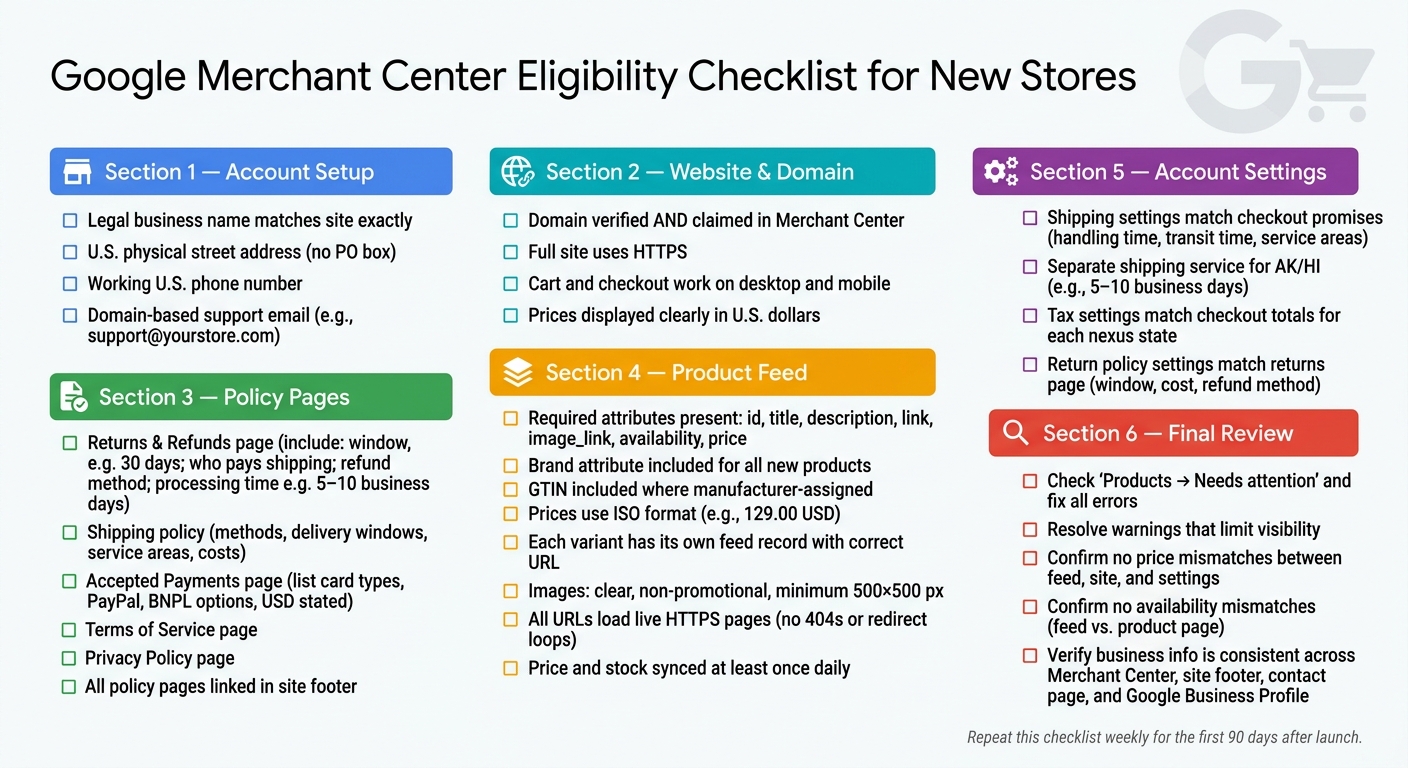
Google Merchant Center Eligibility Checklist for New Stores
Setup a Google Merchant Center Account in 7 min (2026 Tutorial)
sbb-itb-e2944f4
Set Up Your Merchant Center Account and Business Details
Account setup comes first. Google compares this info with your site and product data later, and it checks for consistency before it looks at your products. So start with your account details, then move to domain verification.
Create Your Account with Complete Business Information
Create a business-owned Google Account tied to your store’s domain, such as admin@yourstore.com or merchant@yourstore.com. That way, access stays with the business instead of one person’s personal inbox.
During signup, Google asks for your legal business name, U.S. business address, phone number, and customer service contact details.
- Business name: Use the exact legal or trading name shown on your site.
- Business address: Use a physical street address, not a PO box.
- Phone number: Use a working U.S. number for verification.
- Support email: Use a domain-based support email.
These details should match exactly in Merchant Center and on your site. Even small differences can trip a review. Once your account info lines up with your business, move on to verifying the website you entered.
Confirm Your Website URL and Store Ownership Details
Use the same domain in Merchant Center, on your product pages, and at checkout. If the domain in your account doesn’t match your landing pages, approval can get blocked.
Then verify and claim that same domain. Google treats these as two separate steps: first you verify the site, then you claim it. Together, those steps connect the domain to your Merchant Center account.
Your business name, address, phone number, and support email should be identical across Merchant Center, your website footer, your contact page, and other Google properties like Google Business Profile. A mismatch can look minor on your end but serious on Google’s end. For example, using a parent company name in Merchant Center while your site shows a brand name, or listing a different suite number on another property, often leads to misrepresentation reviews and suspensions.
Verify Your Domain and Check Website Eligibility
Google wants to see that your store leads to a real, working, secure storefront. And Merchant Center reviews the storefront itself, not just the domain you verified.
Verify and Claim Your Website URL
Once your account details line up, connect the exact domain used on your product pages. In Merchant Center, go to Business information → Website and enter your full HTTPS URL – for example, https://www.yourstore.com. Then verify it with a meta tag, HTML file, Google Analytics, or Google Tag Manager, and click Claim.
Here’s the simple version:
- Verification shows you control the domain.
- Claiming tells Merchant Center that your store is the approved owner of that domain.
Only one Merchant Center account can claim a domain at a time.
It also helps to keep every feed URL on that same claimed HTTPS domain. If you redo your site or switch hosting, leave the verification tag or file in place so the connection doesn’t break.
Make Sure the Site Is Live, Secure, and Usable
After ownership is confirmed, make sure the storefront is ready for actual shoppers. Navigation should work, product pages should load without issues, and prices should be easy to spot in U.S. dollars, such as $49.99.
Your cart and checkout should also work from the product page all the way to the order confirmation page. If something fails in that path, Google may flag the site.
Any page that collects personal or payment details needs to use HTTPS. Test checkout on both desktop and mobile before launch.
Display Clear Business Contact Information on the Site
The last part is simple: make it easy for people to reach you. Add a contact page and show your business name, email, phone number, and physical address in the header or footer, with the same details used in your account.
Use a real business mailing address. If contact details are missing, approval can take longer.
Publish Required Policy Pages and Trust Signals
After your contact details are in place, publish the policy pages Google expects to find. Merchant Center checks these pages during review, and missing or fuzzy policies can lead to disapprovals or even suspension.
Add Returns, Refunds, Shipping, and Payment Policies
Give each policy its own page and spell out the terms in plain English. For returns and refunds, include the return window – for example, 30 days from delivery – who pays for return shipping, whether refunds go back to the original payment method or are issued as store credit, and how long processing takes, such as 5–10 business days.
Your shipping policy should list each available method, like Standard Ground, Expedited, and 2-Day. Include delivery windows in business days, where you ship – continental U.S., Alaska, and Hawaii – and how shipping costs work, such as a flat rate or free shipping on orders over $49. These details should match your Merchant Center settings. If they don’t, that’s where trouble starts.
Your Accepted Payments page should name every payment method you take: Visa, Mastercard, American Express, PayPal, Apple Pay, and any buy-now-pay-later options like Affirm or Klarna. It should also state that checkout is processed in U.S. dollars (USD). Merchant Center expects at least one standard payment method, such as a credit or debit card. Add links to these pages in the footer under Policies.
Publish Terms, Privacy, and Checkout Disclosures
You also need separate Terms and Privacy pages. The Terms page should cover order acceptance, pricing errors, limits on liability, and governing law. The Privacy Policy should explain what data you collect, how you use it, who you share it with, and how customers can opt out of marketing.
Before checkout, show the full cost picture: subtotal, shipping, estimated tax, and any fees. Include agreement text with links to your Terms, Returns Policy, and Shipping Policy. Fees that show up only at the last step are a common reason stores get flagged for misrepresentation.
Remove Misleading Claims and Add Trust Signals
Go through your homepage banners, product pages, cart messages, and pop-ups with a skeptical eye. If a claim doesn’t match what the store can deliver, fix it. Common issues include shipping promises you can’t meet every time and refund language that clashes across pages – like all sales final in one spot and 30-day returns in another. If you run a free trial that turns into a paid subscription, every billing detail needs to be shown clearly before the customer says yes.
Trust signals also matter during review. A support email, a U.S. phone number, and support hours listed in U.S. time tell reviewers the business is real and reachable. Secure checkout badges and major payment brand logos near the payment area help too.
Once the site is clear and transparent, move to the product feed and make sure every item detail matches the pages above.
Prepare Your Product Feed and Match It to the Website
Once your site is live and your policy pages are set, make sure your product feed lines up with what shoppers see on the site. Google checks the feed against your storefront, so the same product needs to match in both places. Put simply: the feed and the product page should say the same thing.
Include the Required Product Attributes
Google requires seven core attributes for every product: id, title, description, link, image_link, availability, and price. On top of that, brand is required for most new products, and GTIN is required whenever a manufacturer has assigned one.
Use id values that are unique and stable. Don’t reuse the same one across SKUs. Titles can be up to 150 characters, and they should read like an actual product name: brand, model, key feature, and variant detail. For example, Acme Men’s Running Shoes, Size 10, Black. Prices need to use a number plus the ISO currency code, like 129.00 USD. And before you upload GTINs, check them against GS1 or manufacturer records.
After the feed is filled out, review every field against the live product page.
Match Price, Availability, and Product Details Exactly
Price, stock, and variant details need to match the live page exactly. If your feed shows a product at $129.00 but the landing page shows $139.00, that’s a price mismatch. If your feed says in stock but the product page says Sold Out, that’s an availability mismatch. Issues like these can lead to product disapprovals or even account-level problems.
One issue that slips through all the time is a variant URL mismatch. Say your feed points to a parent product page, but the default variant on that page has a different price than the one in your ad. Now the shopper lands on the wrong version, sees the wrong price, and Google may flag it. The fix is simple: map each feed record to the exact variant URL whenever you can.
Also, be careful with strikethrough or reference pricing. Only show an original price if that price was actually charged within the last 60 days. Made-up reference prices can be treated as misrepresentation.
Do a Final Feed Check Before Submission
Before you submit, review four areas:
- Images: Use clear, non-promotional images that are at least 500 x 500 px.
- URLs: Both
linkandimage_linkmust load live HTTPS pages without 404 errors or redirect loops. - Variants: Each variant needs its own feed record with the right size, color, price, and a URL that lands on that exact variant.
- Sync frequency: Sync price and stock at least once a day, and more often if inventory changes fast.
After the feed is clean, lock in shipping, tax, and return settings so your account data stays in sync.
Finish Account Settings and Build a Compliance Routine
Once your feed lines up, the next step is simple: make sure Merchant Center says the same thing your store says. If your site promises one thing and your account settings show another, problems tend to show up fast.
Set Shipping, Tax, and Return Settings to Match Your Store
Go to Shipping and returns → Shipping policies and line up handling times, transit times, and service areas with the promises customers see at checkout. If you ship to Alaska and Hawaii, create a separate service with longer delivery windows – like 5–10 business days – instead of using the same estimates you use for the contiguous U.S.
Then check tax settings against the totals shown at checkout. Open Business info → Sales tax and set tax collection for each nexus state. Your shipping tax treatment should match both checkout and your policy page.
After that, go to Shipping and returns → Return policies and match the return window, return costs, and refund method to your returns page. Add a direct link to that page in the settings. If some products follow different rules – like final sale items or personalized products – use the returns attribute at the product level for those exceptions.
Check Diagnostics and Fix Issues Before Going Live
Before launch, open Products → Needs attention and work through each flagged item. Merchant Center sorts issues by severity: errors block products, while warnings can limit visibility. Start with errors, then handle warnings.
It also helps to group issues by root cause instead of fixing products one by one. Fix the source problem first, then re-fetch the data. Account-level issues – like an unverified domain, missing business info, or policy warnings – should be checked in the same pass, right alongside item-level and feed-level problems.
Treat your site, feed, and settings like one connected system. That mindset makes weekly reviews much easier once you launch.
Conclusion: Use This Checklist Before and After Launch
Merchant Center eligibility is not a one-and-done task. Check Needs attention every week for the first 90 days. Review shipping, tax, and return settings any time operations change. Update policy pages whenever your store rules change too.
FAQs
How long does Merchant Center approval usually take?
Approval times vary by platform. Amazon seller verification usually takes about 3 business days. Walmart Marketplace often takes 5–10 business days. TikTok Shop is usually a bit faster at 2–6 business days. Target Plus is the outlier here, with about 30 days for screening and another 3–6 weeks for onboarding.
The big takeaway is simple: accurate documentation matters on every platform. If your paperwork is incomplete or doesn’t match, delays can pile up fast.
What happens if my products are disapproved after launch?
If your products get disapproved after launch, check the notice in your account dashboard first. That message usually points to the cause, like missing attributes, policy violations, or data conflicts.
If it’s an attribute problem, use Fix Your Products or the Listing Quality Dashboard to correct missing or mismatched data. If it’s a policy issue, submit a detailed Plan of Action that explains the problem, what you did to fix it, and how you’ll stop it from happening again.
Do I need a GTIN for every product I sell?
Yes – in most cases, you need a GTIN or a similar product identifier for each product you sell.
Major marketplaces often ask for GTINs or UPCs to keep inventory and product listings accurate. That helps them match products, reduce catalog errors, and manage listings more cleanly.
Some platforms may also ask for packaging photos that show the UPC barcode during category approval. So it’s not just about entering a number in a form. You may need proof right on the product packaging.
Keeping product identifiers accurate is a standard catalog compliance requirement.