
If you run Walmart Marketplace promos the wrong way, your discount may go live without a strikethrough, get rejected, or lose buy box strength. The short version: Walmart supports 4 item-level promo types, usually wants at least 10% off for strikethrough pricing, requires UTC scheduling, and limits each SKU to up to 10 promos with no overlapping dates.
Here’s what I’d check first before I launch anything:
- Pick the right promo type: Reduced Price, Rollback, Clearance, or Price-in-cart
- Meet the discount rule: usually 10% off, or sometimes 5% for items over $200
- Check the reference price: Was Price and List Price affect strikethrough display
- Schedule in UTC: Seller Center needs about 4 hours of lead time; API needs at least 30 minutes
- Avoid overlaps: Walmart can block promos on the same SKU if date ranges collide
- Watch stacked discounts: checkout discounts can combine, but promo date overlap is a separate issue
- Review compliance: MAP limits, comparison price, shipping price, and margin still need to work
If you want the simplest takeaway, it’s this: Walmart promos are not just about lowering price. They’re also about meeting display rules, timing rules, and SKU-level limits.
| Promo type | Where shopper sees it | Common use | Main watchout |
|---|---|---|---|
| Reduced Price | Product page/search | Short sales | Needs enough discount for strikethrough |
| Rollback | Product page/search | Longer promo windows | Same price display rules apply |
| Clearance | Product page/search | Liquidation or overstock | Price must stay at or below the 90-day median |
| Price-in-cart | Cart/checkout | MAP-restricted items | Shoppers may leave before adding to cart |
I’d treat this article as a plain-English checklist for promo types, pricing thresholds, setup steps, timing, stacking, and account risk.
How to Run Promotions on Walmart (Sales Spike!)
sbb-itb-e2944f4
Promotion types available on Walmart Marketplace
Walmart Marketplace Promotion Types: Quick Comparison Guide
Reduced Price, Rollback, Clearance, and Price-in-cart
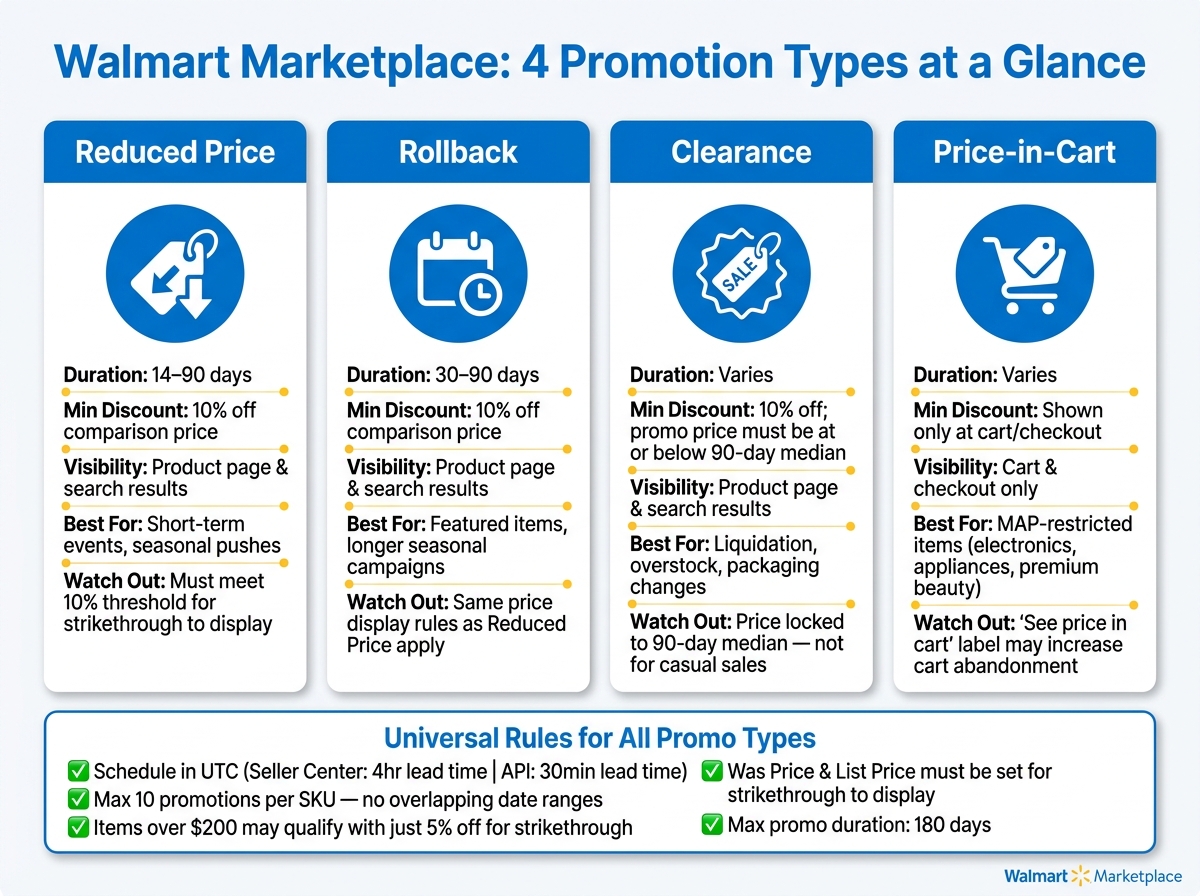
Walmart offers four item-level promotion formats. Each one fits a different job.
| Promo Type | Duration | Minimum Discount | Best For |
|---|---|---|---|
| Reduced Price | 14–90 days | At least 10% off comparison price | Short-term events, seasonal pushes |
| Rollback | 30–90 days | At least 10% off comparison price | Featured items and longer seasonal events |
| Clearance | Varies | At least 10% off; promo price and max ship price at or below the 90-day median | Liquidation, overstock, or packaging changes |
| Price-in-cart | Varies | Price shown only in cart/checkout for MAP-restricted items | MAP-restricted items, higher-ticket branded goods |
Reduced Price works best for short, tactical markdowns. Rollback gives you a longer window, which makes it a good fit for featured items or seasonal campaigns that need more time. Clearance is different. It’s meant for actual liquidation, not a casual sale.
Walmart also says the promo price and max ship price for Clearance must stay at or below the 90-day median price. That makes Clearance a better fit when moving inventory matters more than holding the line on price.
Price-in-cart takes another route. The lower price stays hidden until the shopper reaches cart or checkout. This format is often used for MAP-restricted items, including electronics, appliances, and premium beauty. One thing to watch: if shoppers see See price in cart and stop there, cart abandonment can creep up.
Item-level promotional pricing versus Extra Savings, Buy More and Save, and Promo Codes
Not every Walmart promotion changes the price a shopper sees right away. Some discounts show up on the product page. Others kick in later at checkout.
Item-level promotions, like Reduced Price, Rollback, and Clearance, change the displayed price on the product page and in search results. If you want a markdown that shoppers can spot fast, this is usually the most direct path.
Cart-level offers work in a different way:
- Extra Savings applies an automatic discount at checkout when a shopper meets a rule, like hitting a minimum cart value or buying a set mix of items.
- Buy More and Save uses tiered discounts, such as Buy 3+, save 15%, to push larger baskets and multi-unit orders. It tends to work well for consumables and replenishable products.
- Promo Codes require the shopper to enter a code, which makes them useful for email, social, influencer, or remarketing campaigns.
A simple way to think about it: use item-level promos when you want the markdown front and center. Use cart-level offers when the goal is basket growth or a discount aimed at a certain shopper group.
Next, check Walmart’s reference-price and strikethrough rules before scheduling a discount.
Pricing limits, strikethrough rules, and comparison price requirements
How Was Price and List Price control strikethrough eligibility
Walmart uses reference prices to decide if strikethrough pricing can show.
Was Price is the 90-day median paid price for the item on Walmart.com, excluding other promo prices.
List Price is the manufacturer’s suggested retail price, or the price the supplier generally offers.
Walmart checks these reference prices before it shows a strikethrough. If the reference price hasn’t been set, the strikethrough may not appear.
After the reference price is in place, the size of the discount helps decide whether the promo will display.
Discount thresholds, strikethrough visibility, and reference price issues
Walmart usually wants a discount of at least 10% off for strikethrough pricing and badges. For items priced above $200, the bar may drop to 5% off. If the discount falls short, Walmart may hide the strikethrough and badge.
Walmart’s low-price policy can also suppress listings or weaken buy-box competitiveness.
Once those price rules are met, the next step is promotion setup and scheduling.
How to set up, schedule, and manage promotions
Seller Center setup, templates, and required fields
Once price eligibility is confirmed, you can publish the promotion in Seller Center or through the API. In Seller Center, there are two main paths:
- The Promotions dashboard under Pricing for single campaigns
- The Price and Promotion template under Catalog → Update items → Update with file for bulk pricing updates
If you’re uploading in bulk, download the latest template from Seller Center before each campaign using Show Walmart templates. That step matters. Using an old file can turn a simple upload into a headache.
For a valid bulk upload, include these required fields:
- SKU
- Promotion Type
- Promo Price
- Promo Start DateTime (UTC)
- Promo End DateTime (UTC)
- Promo Setting Action: Create
Use the format YYYY-MM-DD hh:mm:ss, enter decimals with a period, and leave out currency symbols. A few common mistakes can cause the file to be rejected: missing headers, a start date that is already in the past, or a promo price that isn’t lower than the current price.
Lead times, UTC scheduling, duration limits, and per-SKU caps
All promotion times must be entered in UTC. That’s the part people often trip over, especially during daylight saving changes.
In Seller Center, submit the promotion at least four hours before launch. With the API, the start time must be at least 30 minutes in the future. So if you’re planning around local time, convert it to UTC first, then double-check it before you publish.
The U.S. Marketplace API also sets a few hard limits. Promotion duration can be up to 180 days, and each SKU can have up to 10 promotions as long as the date ranges do not overlap.
Seller Center versus API workflows for promotion management
The best workflow usually comes down to scale.
Seller Center is a solid fit for smaller catalogs or the kind of campaign you set up once in a while. The interface is simple, and templates help when you need to update more than a handful of SKUs. The API makes more sense when you’re dealing with a large catalog or changing promotions often, since it lets you handle updates through code instead of manual uploads.
| Aspect | Seller Center | API |
|---|---|---|
| Lead time | Longer processing window; schedule well in advance | Start time must be at least 30 minutes away |
| Bulk control | Manual UI plus template uploads | Programmatic updates across many SKUs |
| Change management | Manual updates and template uploads | Create, update, or end promotions through API workflows |
| Promotions per SKU | Confirm current cap in Seller Center | Up to 10 promotions per SKU, with no overlapping date ranges |
| Best fit | Smaller catalogs and occasional campaigns | Large catalogs and frequent automated updates |
Before publishing, check whether the SKU already has an active promotion. Overlapping promos can block the new one and slow everything down.
Overlapping promotions, stacked discounts, and compliance risks
What can stack and what cannot overlap
After scheduling rules, the next place sellers get tripped up is how multiple discounts apply to the same SKU.
Here’s the key difference: stacking at checkout is not the same as overlapping promo dates for the same SKU. One changes what the shopper pays. The other can stop the promotion from going live at all.
Some discounts can stack at checkout. But if two promo windows overlap on the same SKU, Walmart can reject the upload.
Check the SKU’s current promo window before you submit a new one.
Pricing violations and account risk
Once a promo goes live, the main compliance check is simple: do the reference price and discount still support the offer?
Before launch, recheck:
- Comparison price
- Discount depth
- MAP compliance
- Margin
Also verify that the comparison price and discount still meet Walmart’s display thresholds. If they don’t, your strikethrough pricing may not show, even if the promo is active.
Key rules to check before every promotion
Before publishing, confirm that promo dates do not overlap and that the discount still qualifies for display. Verify the comparison price, discount threshold, and promotion type all line up with your pricing goal.
Use these checks before every launch to avoid rejected uploads and hidden strikethroughs.